Review processed documents
Check a successfully processed document and mark the completed review for your colleagues.
Select a screenshot to open it full size in a new tab.
On this page
Use this for a document that has already processed successfully. Files in Pending Review follow a different workflow.
1. Find and open the document
Open Documents, filter to the Entity, and select the file. For this example, open Seabreeze invoice.pdf. A completed row in Processing files also opens its preview.
Check Business details for the Entity, type, and storage folder. Use Open file when you need to check the stored file.
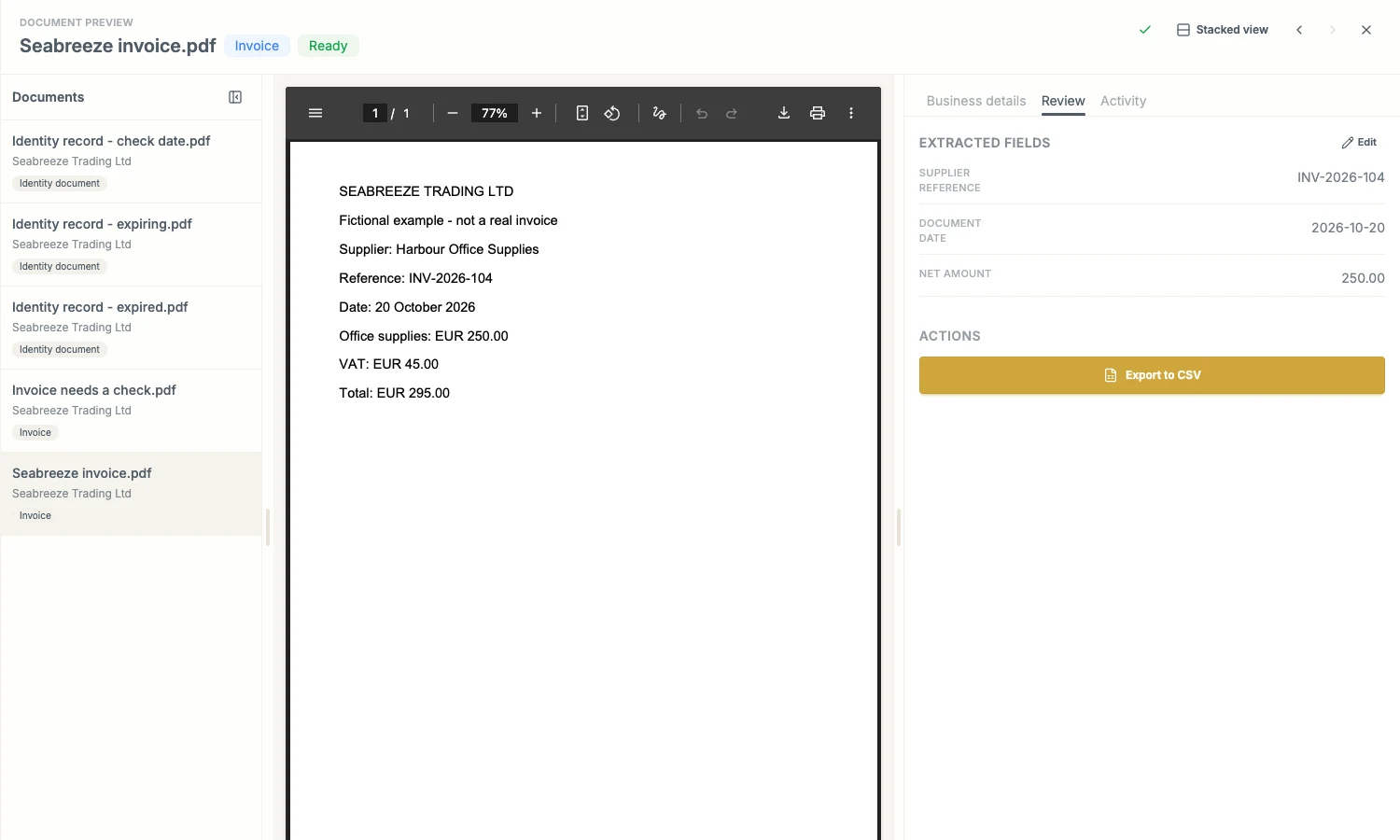
The document and its details appear together. Check the Entity and status before reviewing the values.
2. Compare the extracted values with the original
Open Review. Compare the values with the file itself, including names, dates, references, and amounts that matter for this document type.
Use previous/next or the document selector to move through the current set. On a small screen, the preview and details stack; you do not need to close the document to reach the next one.
3. Correct anything that is wrong
Select Edit in Review, correct the fields, and select Save fields. Cancel if you do not want to keep an edit. Check the displayed values after saving. Open Activity, then View details on the edit event, to see who changed each value and its Before and After values.
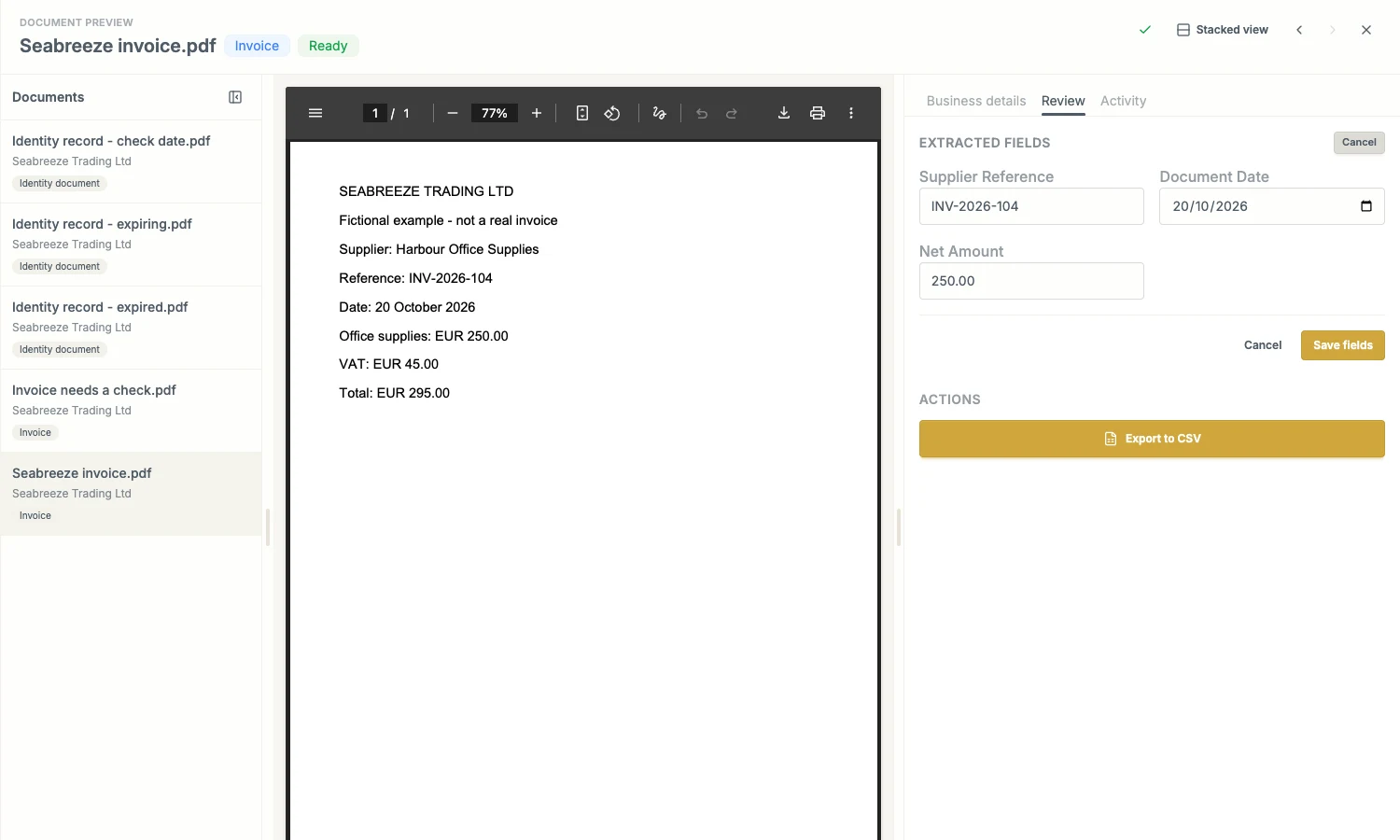
Correct extracted values against the source. Save the edit before taking another action.
If the document type is wrong, use the type-change control in Business details. A new type extracts a new set of fields. When retaining the same type, leave Re-extract fields from the document unchecked if you need to preserve manual corrections. See Document review actions.
4. Mark the check complete
If you use Publish to Xero, a successful publish including the file attachment marks the document Reviewed automatically. Check the outcome in Activity; a failed or unconfirmed attempt does not complete the review. See Document activity before retrying a failed publish.
When you are satisfied, select the checkmark Reviewed control near the document title. Check Business details for the Reviewed status. This tells colleagues that the check has been completed; the header’s Ready badge describes processing.
Finish corrections first. Reviewed is a one-way checkpoint: the interface then prevents changes to extracted values and document type, and there is no unmark action.
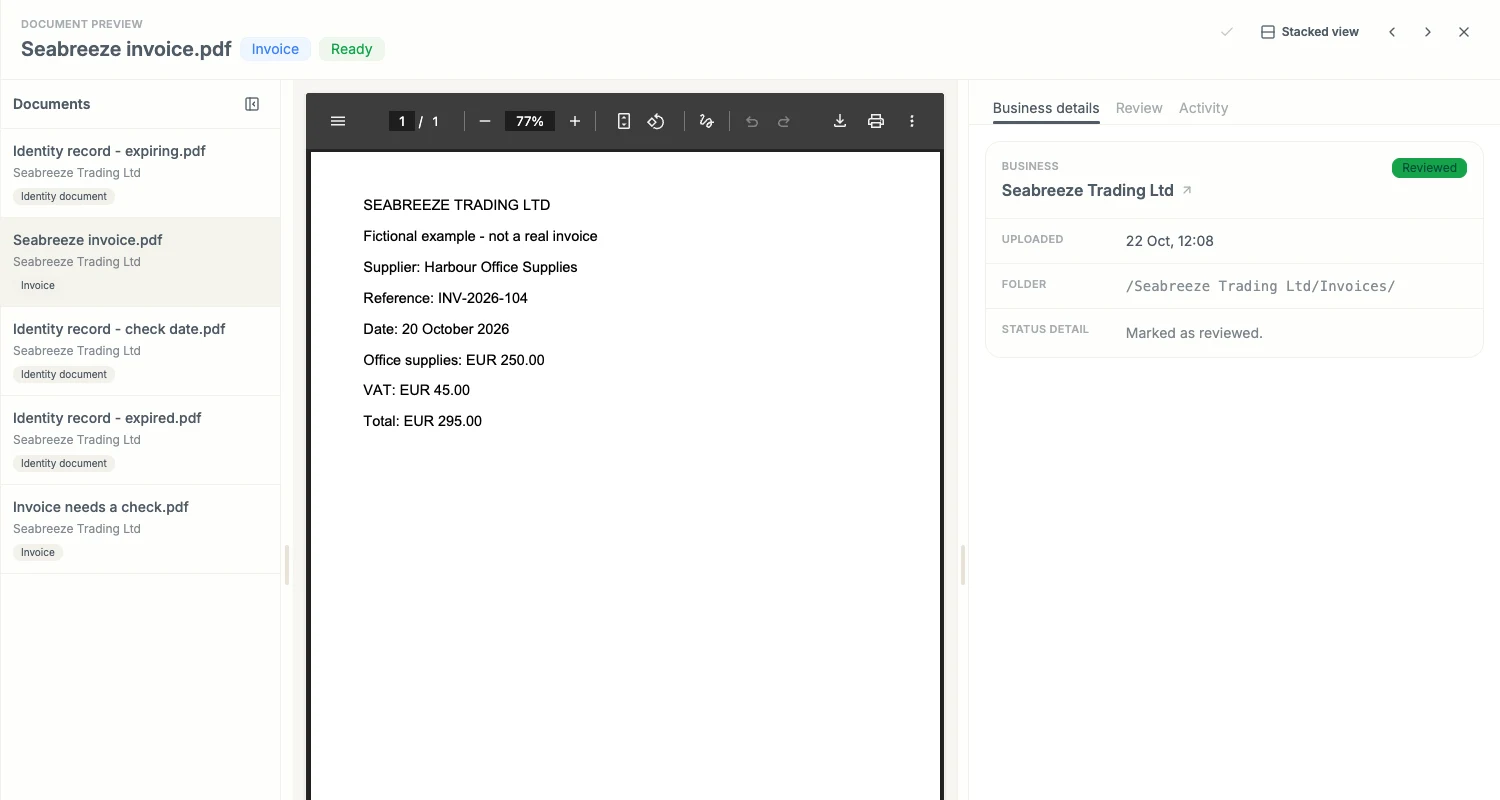
Reviewed marks the final human check. It is separate from processing or organising the file.
The control depends on your access and the document’s status. Ask the responsible colleague if you cannot complete the check; do not mark a file reviewed while it still needs correction.