Add a client
Create a Contact and an Entity, assign Services, and decide whether to send a proposal.
Select a screenshot to open it full size in a new tab.
On this page
Before you begin
Have the main contact’s name and email, the Entity’s details, and its agreed Services ready. The Services should already exist in Settings → Services.
You need access to create clients. If fee controls are unavailable to you, you can save the records and leave the proposal for a colleague who has access to Fees.
1. Open Add Client
Open Clients, then select Add Client.
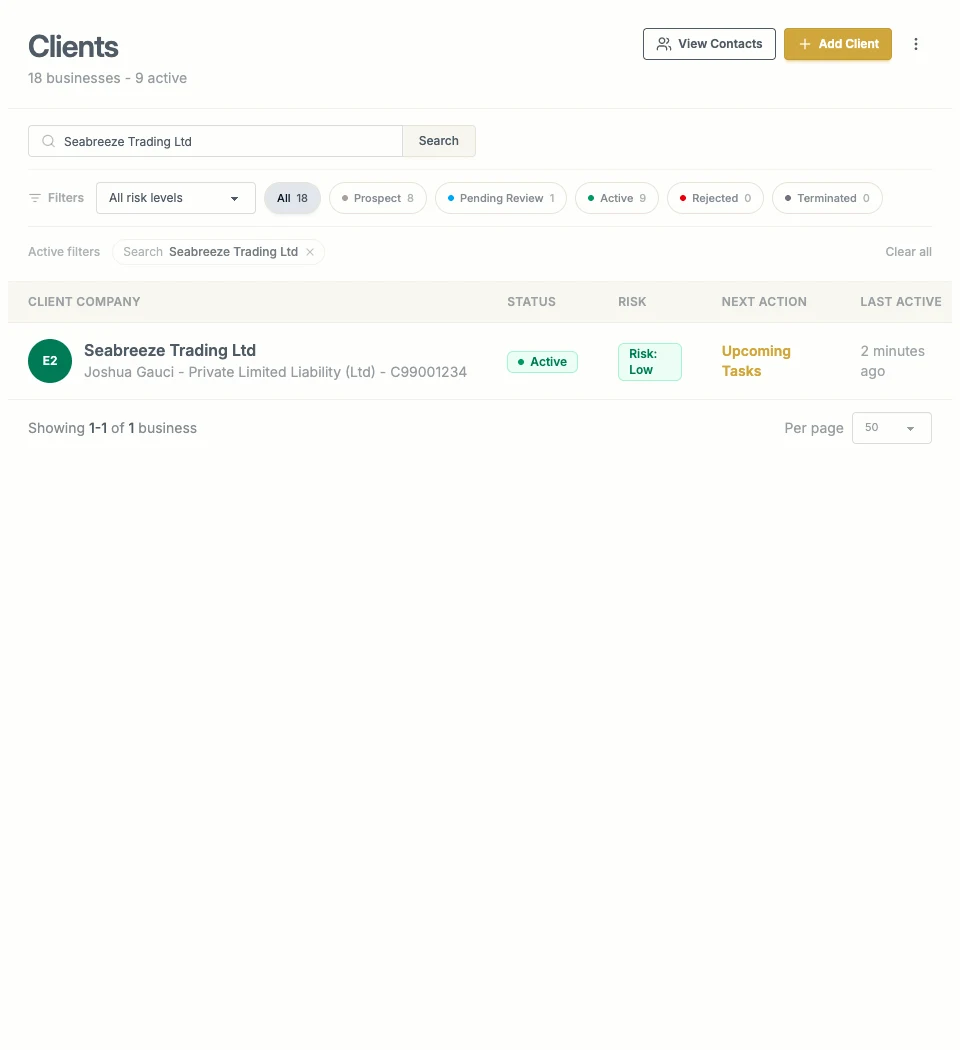 Start from the Clients list. Demonstration records are shown here.
2. Choose the Contact
Enter the main contact’s name and email. In our example, this is Joshua Gauci. If the person already exists, choose Use existing contact and find their record instead of creating a duplicate.
Choose Role in this entity, such as Director or Finance Contact. If you choose Other, enter the role name. This describes the person’s relationship to this Entity; it is separate from your colleagues’ firm roles.
Select Continue to save this step and move to the Entity details. It does not send a proposal.
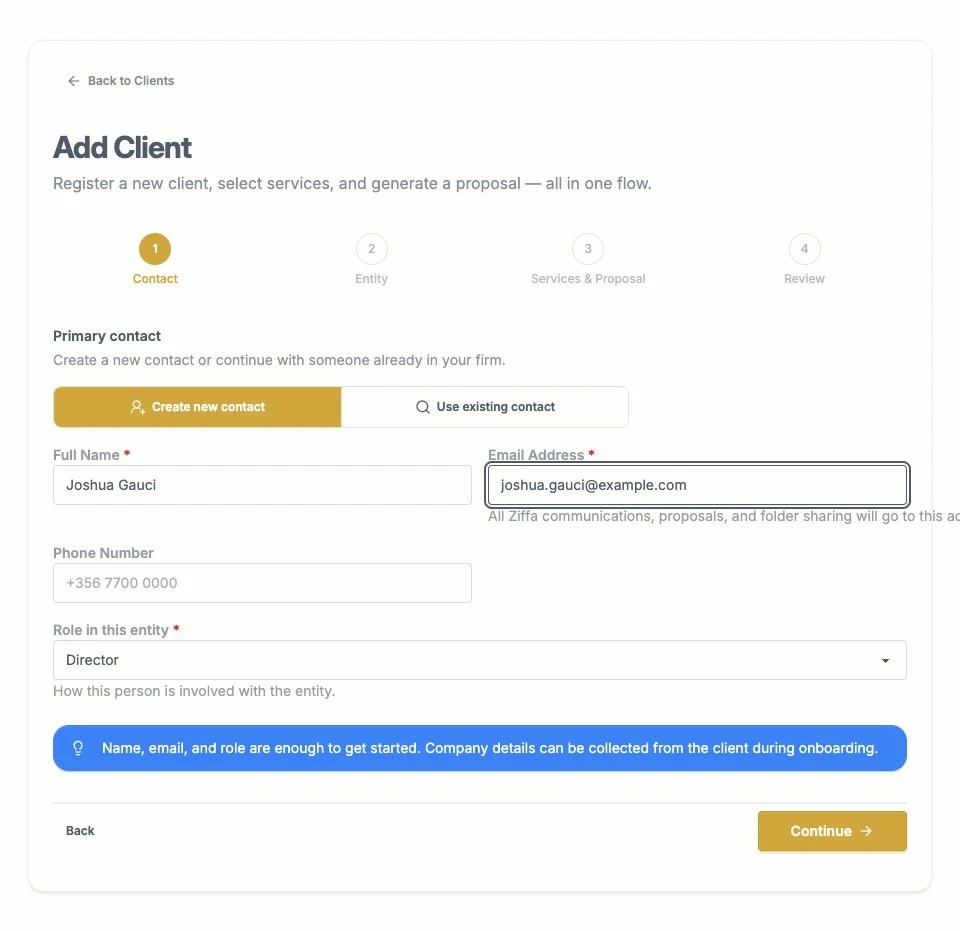 The Contact is the person who receives communications.
Read Contacts and Entities if you are unsure which details belong here.
3. Enter the Entity details
Choose the Entity type and enter its name and the details requested for that type. Our example is Seabreeze Trading Ltd, a limited company.
Check registration, tax, and date details against your records. Complete applicable financial year-end and period-end information when available. These dates help Ziffa calculate recurring due dates; missing dates can prevent a Job from being scheduled.
Select Continue to move to Services. Read Entity dates and tax details for the scheduling effect of these fields.
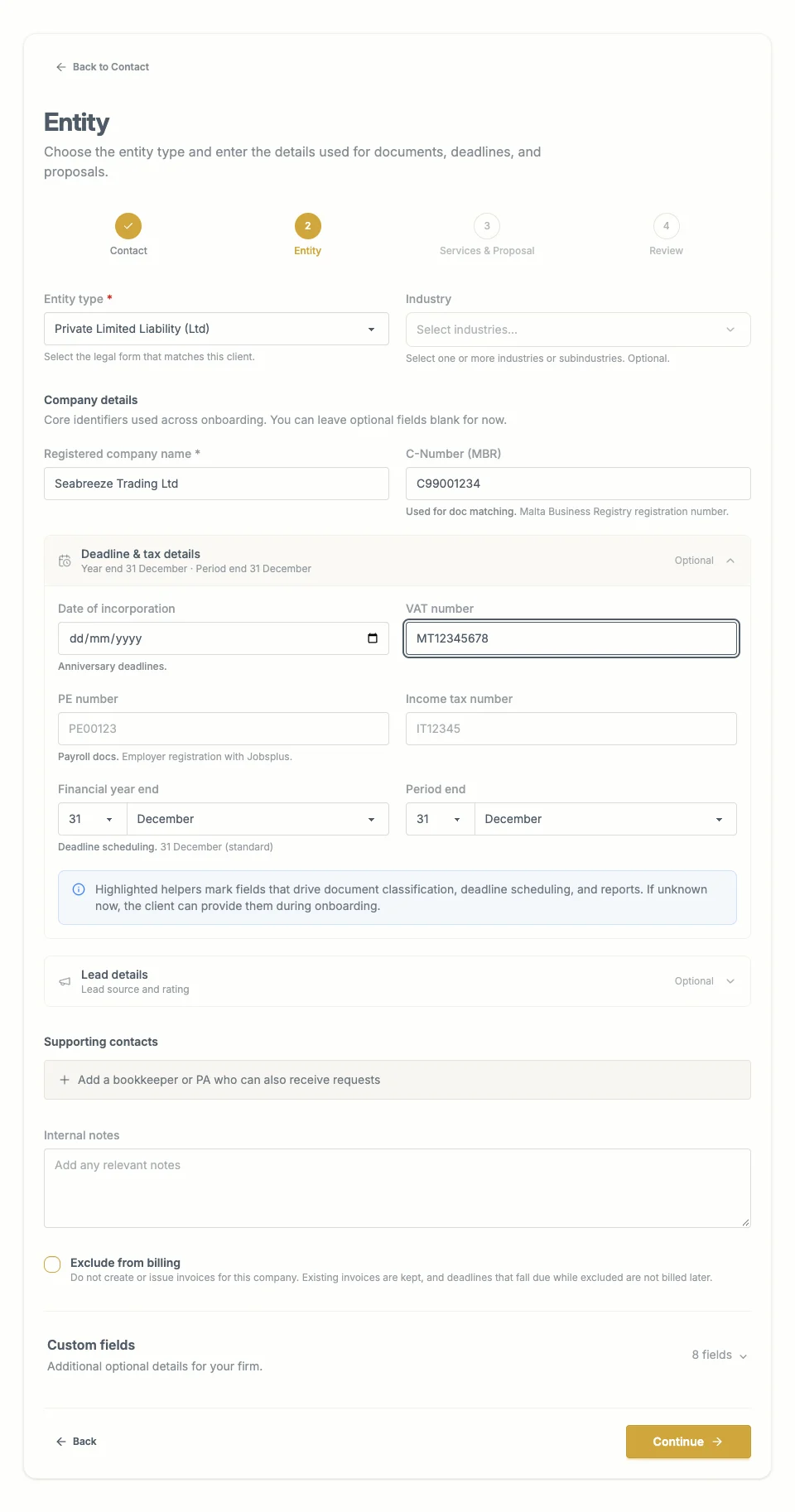 Entity details describe the business or individual receiving your Services.
4. Choose Services and fees
Select the Services you will provide. Where you have access to Fees, review the default amounts and change them for this Entity if needed. Check VAT, line items, additional fees, and discounts that apply.
Where Billing controls are available, check the billing trigger and start policy. For Job-based billing, make sure each fee line has the correct Bill when selection.
The proposal preview shows recurring fees on an annual basis. For example, €250 per month appears as €3,000 a year before VAT. This is a proposal total, not an invoice that has been issued.
Select Confirm & Continue to save the selection and open the review step. This button does not issue an invoice.
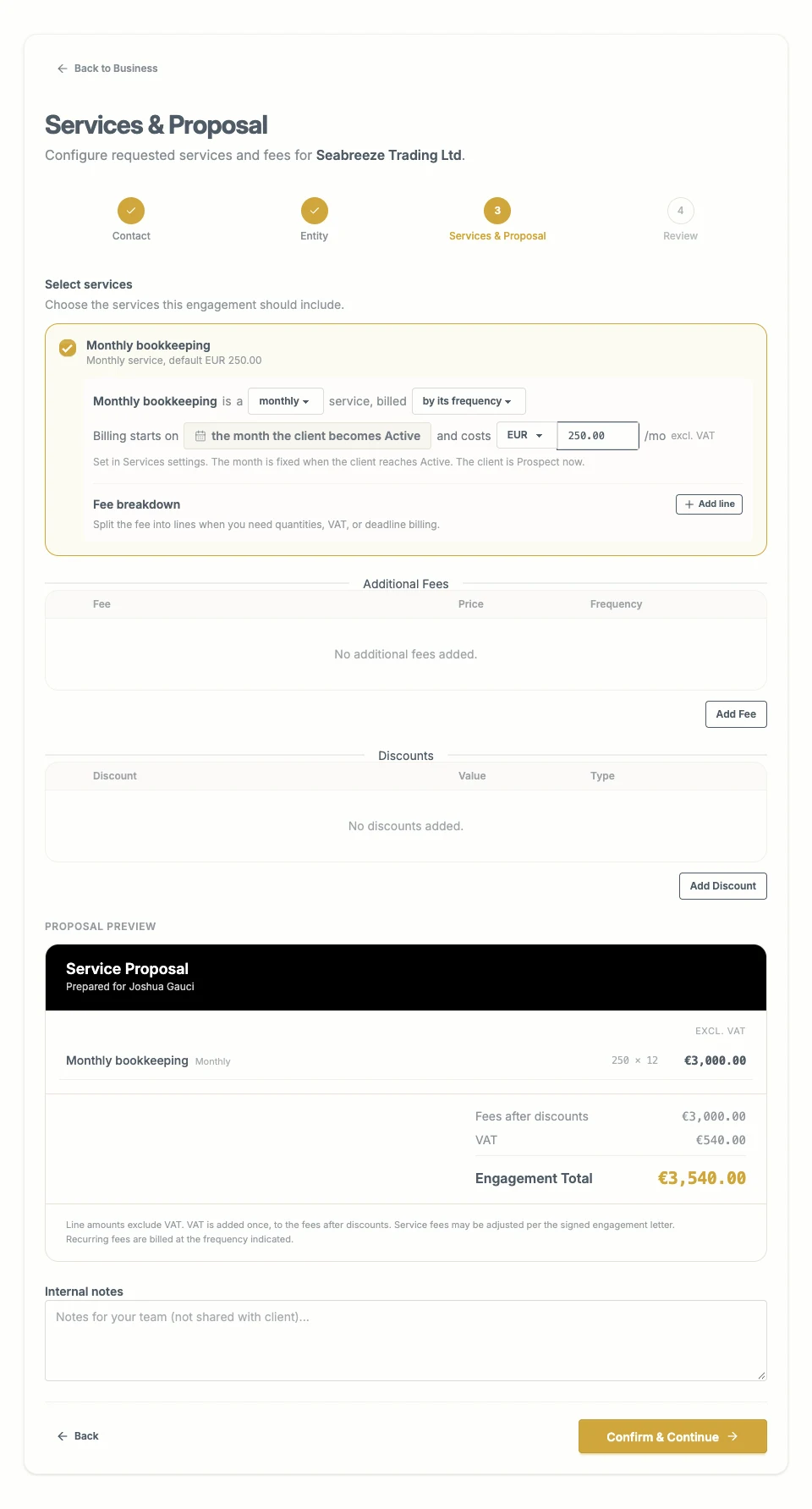 Check both the Services and their commercial terms before continuing.
Related: Services and Create and issue bills.
5. Review and choose what happens next
Check the Contact, Entity, Services, and fees shown on the review screen.
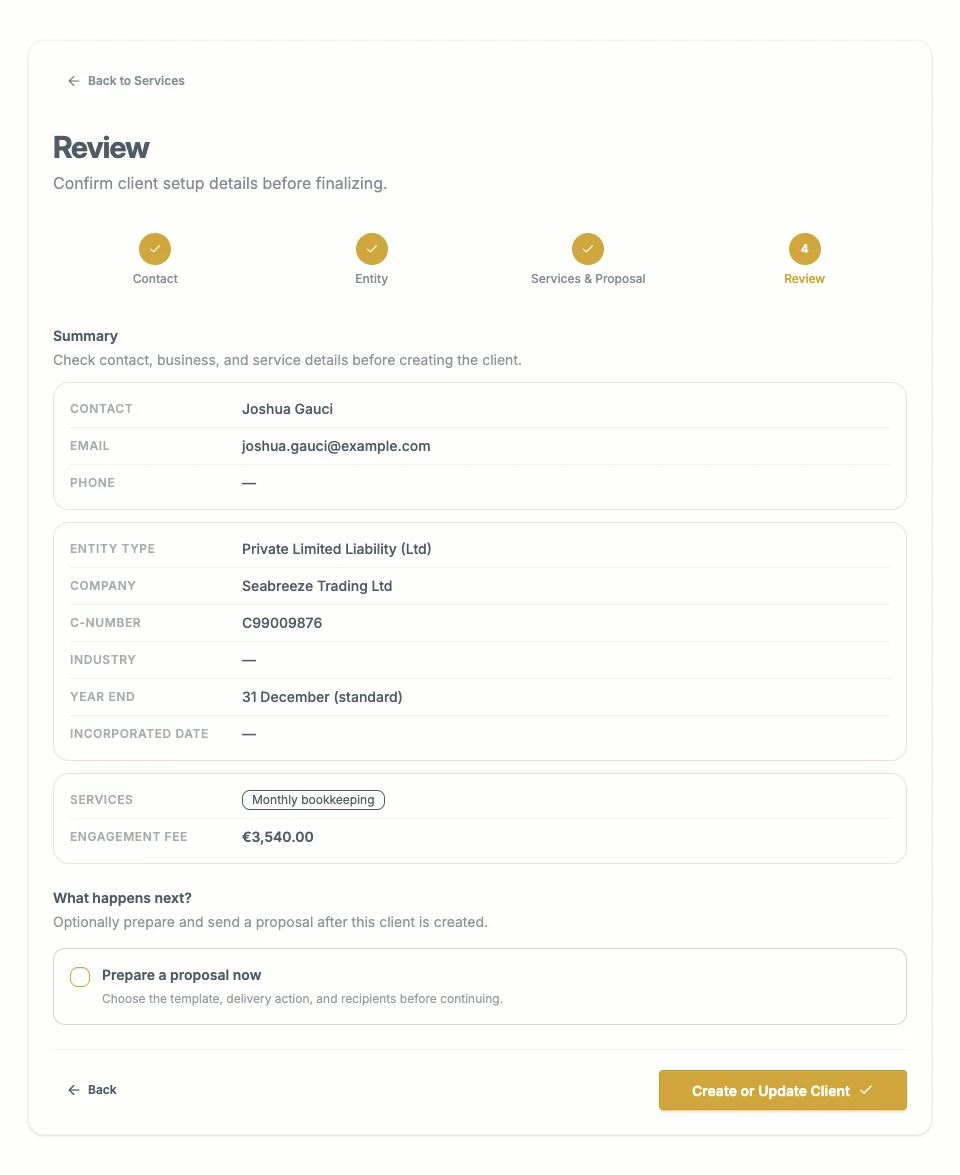 Preparing a proposal is optional. Read the final button before selecting it.
| Action | What happens |
|---|---|
| Leave proposal preparation off, then Create or Update Client | Save the client information without sending a proposal. |
| Create & review setup, after choosing signature | Save the client and prepare the signing setup for review. This is not the final send action. |
| Create & send for signature | Save the client and send the signing request to the selected recipients. |
| A final Create & … action for approval or email | Save the client and start the chosen delivery action. Check the selected action and recipients first. |
For recipient choices and the differences between approval, signing, and email, follow Send a proposal or engagement document.
6. Check the result
Return to Clients and find the new Entity. Check its Services and next action. A client saved without a proposal can be picked up by the colleague responsible for sending it.
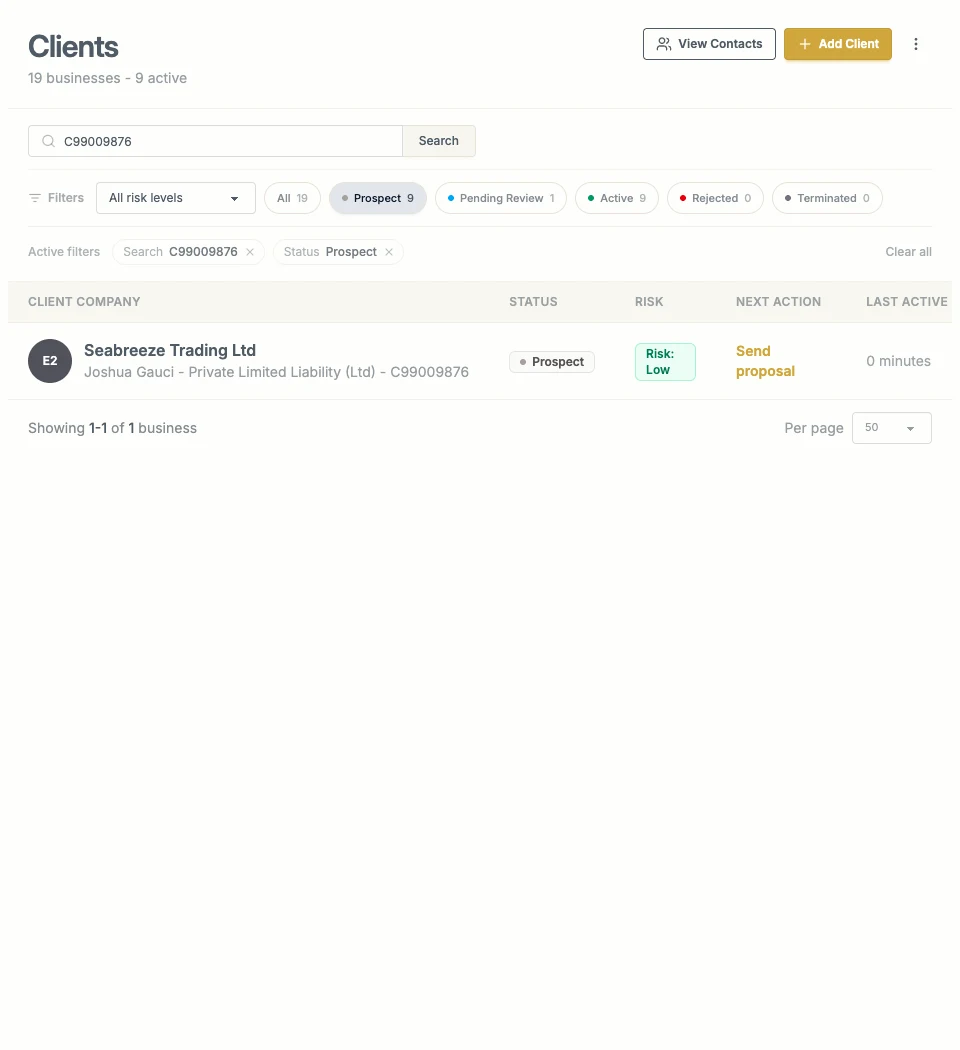 The saved Entity is available in the Clients list.
Creating the records does not automatically complete due diligence, accept the client, or issue a bill. Finish the applicable review and activation steps before expecting all Service work to begin.