Filter Jobs and save views
Find relevant work, save your filters, and choose what you see by default.
Select a screenshot to open it full size in a new tab.
On this page
Current app label: the Jobs workspace is called Tasks.
Apply filters
- Open Tasks.
- Choose All tasks or an existing saved-view tab.
- Use search and Filters to narrow the results. Available controls include Entity, Service, assignee, work state, template, and due-date range.
- Use Assigned to me when you want your own work.
- Check the active filter chips. Remove a chip to remove that restriction.
Filters change which Jobs are shown. They do not change the Jobs themselves. The list and board views show the same filtered work in different ways.
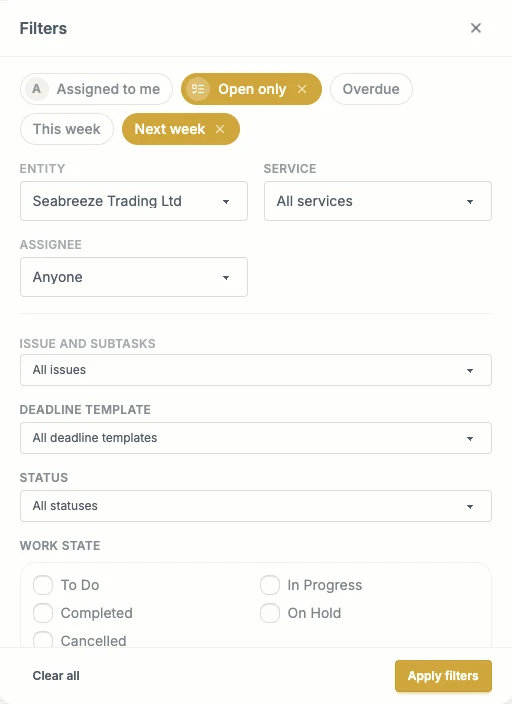
Use the shortcuts for common date ranges and the fields below for more specific questions. Check the active chips after applying filters.
Understand Open only
All tasks starts with Open only enabled. This hides older completed or cancelled work, but it can still show completed or cancelled Jobs that are due today or later, or were updated today.
For a strict list of unfinished work, also choose the relevant unfinished work states. Turn off Open only when you need older closed history.
The Year view includes completed and cancelled history even when Open only is selected. A parent-and-subtasks view also keeps the full tree visible.
Save a new view
- Apply the filters you want.
- Select Save view, or Save as new when adapting an existing view.
- Give it a useful name, such as Bookkeeping — next week.
- Choose who can open it: only you, everyone in the firm, or selected teammates, where your access allows sharing.
- Select Save view.
The saved view appears as a tab. Sharing a view does not give another colleague access to clients or information their role does not already allow.
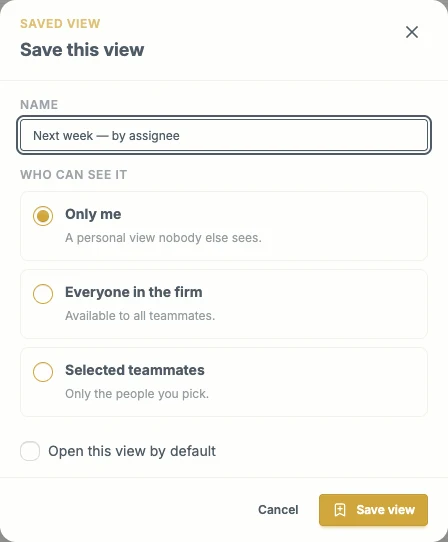
The visibility options control who can open this saved view. Saving the view does not change the Jobs.
Change an existing view
Changing filters previews a different result without immediately rewriting the saved view. Look for Unsaved changes.
- Save changes to update the view, if you can edit it.
- Save as a new view to keep the original.
- Discard changes to return to the saved filters.
Use the view’s options menu to rename, share, or delete it. Deleting a view removes the saved filter set, not the Jobs.
Choose your default
Open the view’s options and select Make my default. That view becomes your starting point when you open Tasks without a specific filter or view in the address.
Your default also controls the dashboard’s upcoming-work card. Choose Clear my default to return to the built-in default.