List and Kanban views
Choose a view for scanning work, following progress, or balancing assignments.
Select a screenshot to open it full size in a new tab.
On this page
Current app label: open Tasks to see Jobs. The view buttons are Table view and Board view.
List view
Use Table view when you want to compare due dates, Entities, Services, and work states in rows.
Apply filters first, then select a Job to open its details. The list is useful for finding a specific item or checking a set of due dates. Changing the view does not change the underlying work.
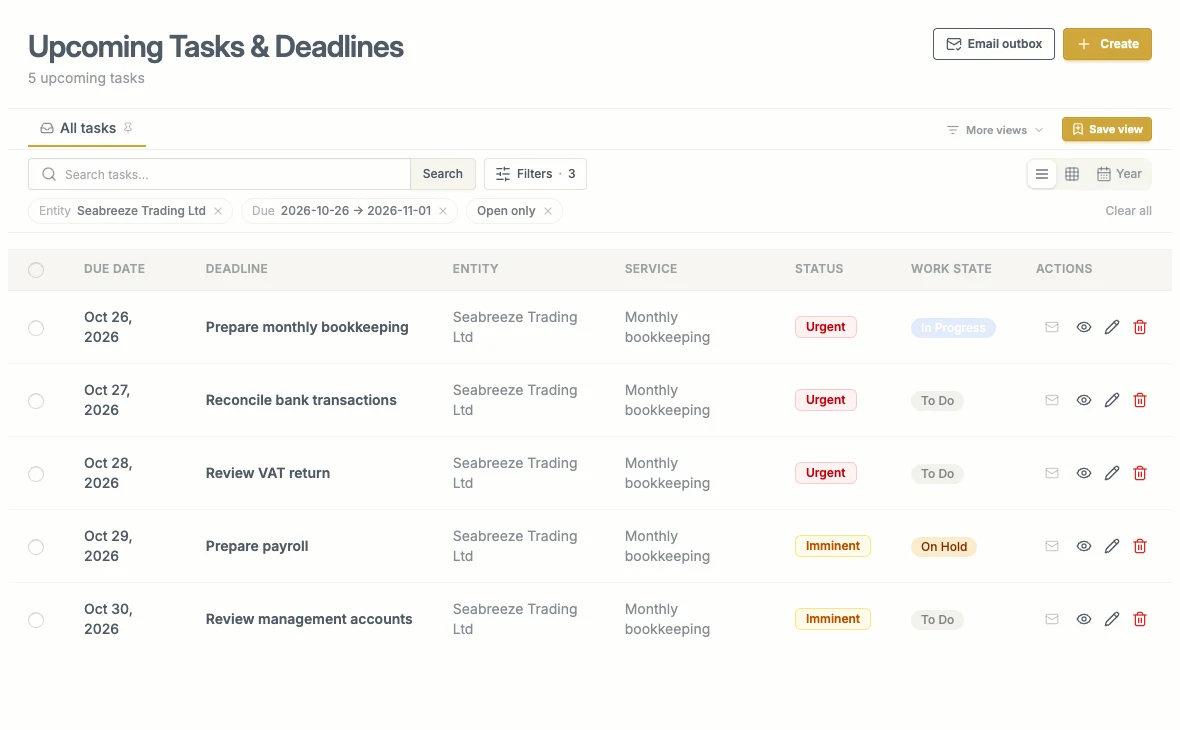
Use the table when you want to compare several Jobs without opening each one.
Kanban grouped by work state
Select Board view and group by work state to follow progress through columns such as To Do, In Progress, On Hold, Completed, and Cancelled.
- Select a card to open its details.
- Move a card between work-state columns to change its work state, where you have access.
- Check that the move succeeds before treating the new state as saved.
A badge such as 8/24 means eight matching cards are shown out of 24 matching that column. Check other pages to see the rest.
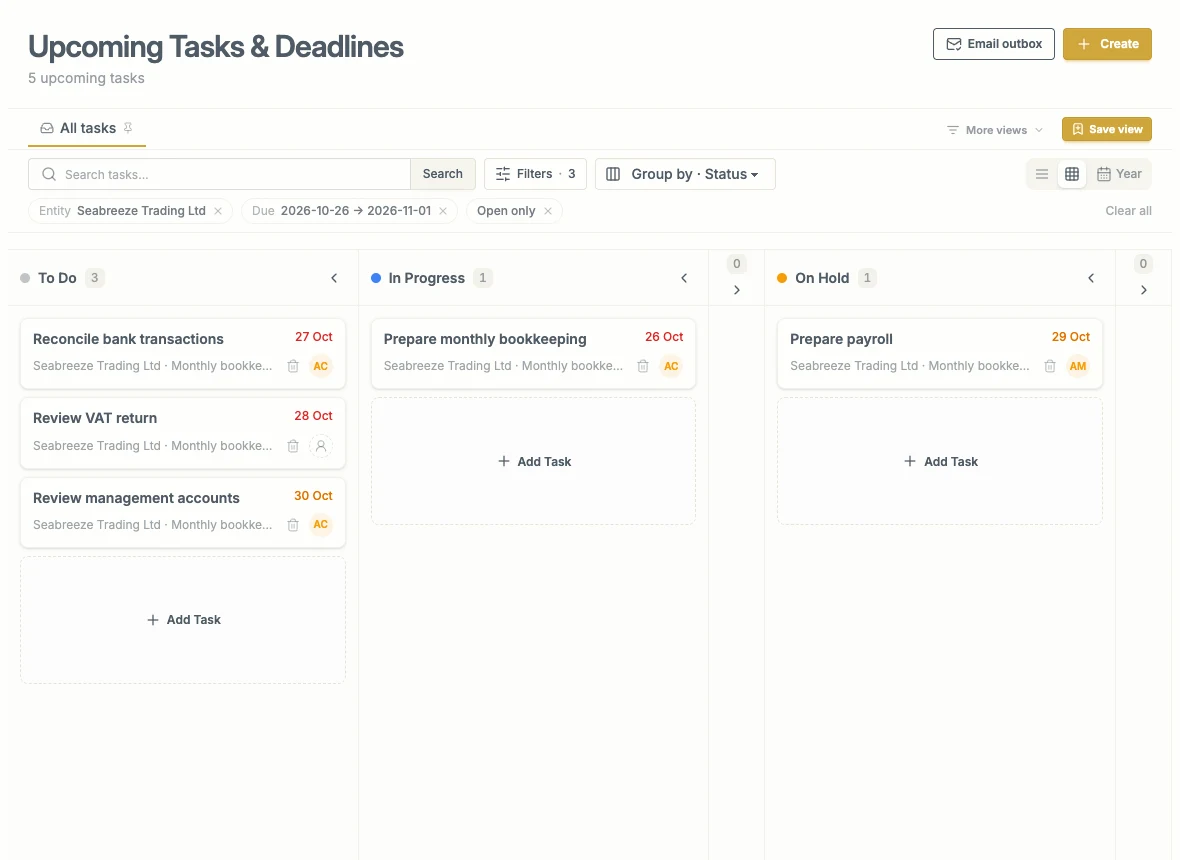
This board groups by work state. Moving a card to another work-state column changes its progress state.
Kanban grouped by assignee
Group by Assignee to see the team’s allocation. The Unassigned column holds work without an assignee.
Moving a card between these columns changes who is responsible. It does not move the Job to another work state. Use the assignee control on a card if you prefer choosing the colleague directly.
Each column shows the matching workload’s Budget, Actual, and Remaining hours, plus missing-budget and over-budget information where applicable. These figures cover matching work across pages, not just the cards currently visible.
Use Load more at the bottom of a column to see its remaining Jobs. Loading more cards does not change the workload totals.
Inactive colleagues may still appear where they have work assigned. Reassign that work to an active colleague as appropriate.
Use this view to plan next week’s work.
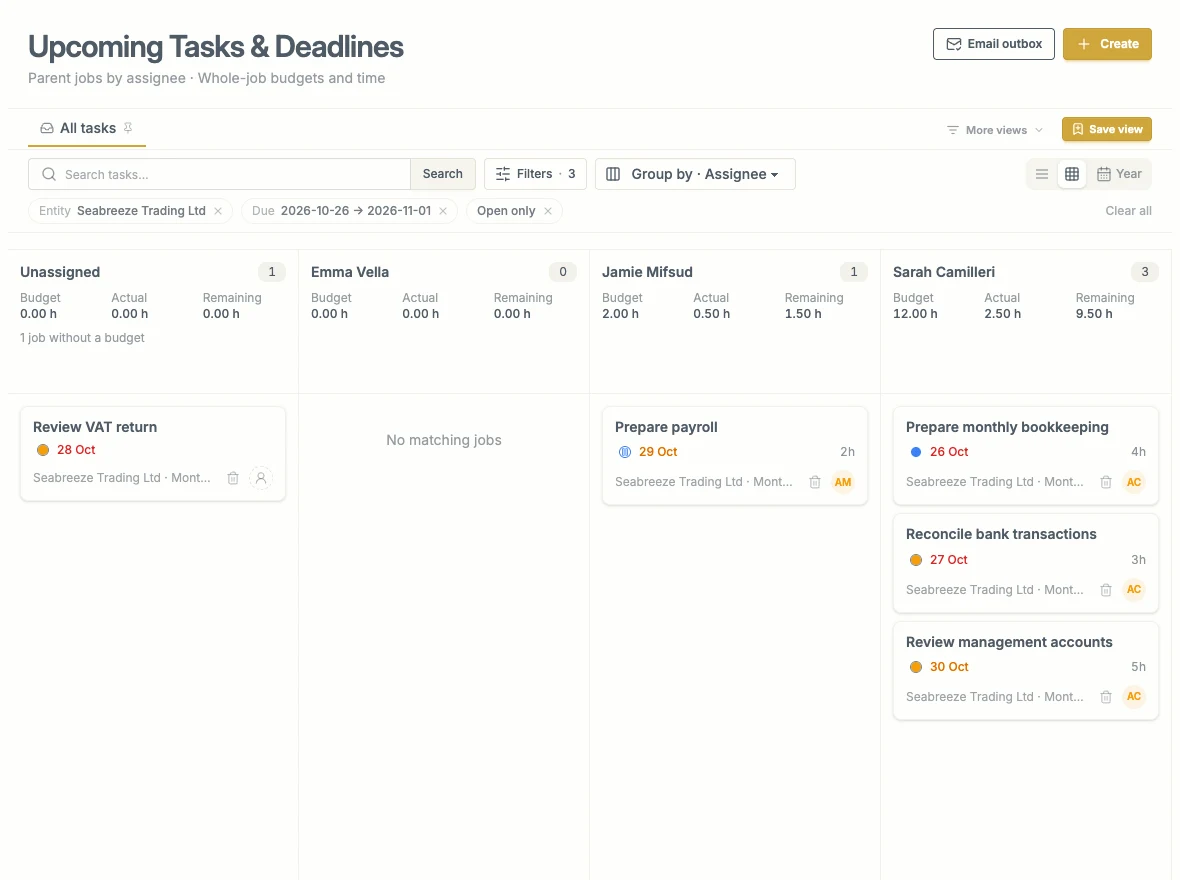
Grouping by Assignee answers a different question: who owns the work, and how much time is budgeted?
Year view
Use Year view for an overview of parent Jobs by Entity and month. Select a Job indicator, or the additional-items count, to inspect the work.
Year view includes completed and cancelled history. Do not expect the Open only filter to hide that history here.
Keep the filters in mind
The view answers a question about the filtered work. A quiet column may mean a filter excludes other Jobs, rather than that someone has no work.