Create a Senior role
Create a Senior accountant role for a colleague who coordinates work for assigned clients.
Select a screenshot to open it full size in a new tab.
On this page
This example gives a senior accountant access to assigned clients, team assignments, and shared work views. It leaves proposals, fees, invoicing, and firm administration to other colleagues. Adapt the choices to the responsibilities in your firm.
You must be a Partner to create a role. Creating it does not assign anyone to it.
1. Start a new role
- Open Settings → Roles.
- Select New role.
- Enter Senior accountant in Role name.
- In Description, enter Coordinates work for assigned clients and maintains shared work views.
Use New role for this example. New Senior Manager starts from a different preset with broader responsibilities.
2. Choose which clients the role covers
Under Which clients, select Only clients they are assigned to.
This lets you give a senior responsibility for a particular client portfolio. It does not let them create new Contacts or Entities. If they also handle new-client setup, review Every client in the firm before choosing a wider scope.
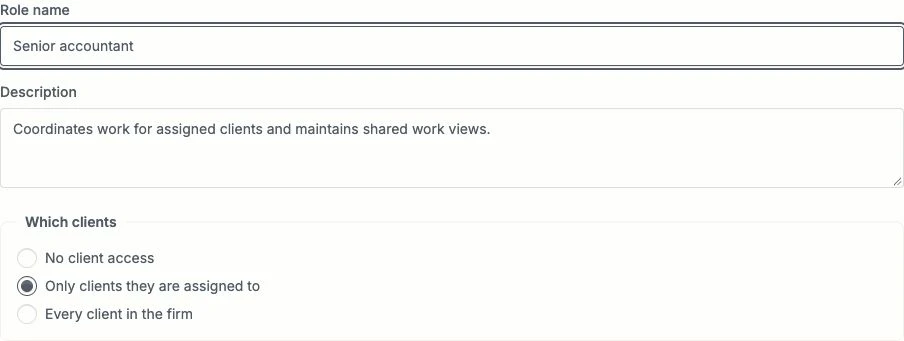
Name the role and choose its client scope before selecting permissions.
3. Allow work on assigned clients
In Clients & entities, select:
| Permission | Choose | Why |
|---|---|---|
| Clients | Manage | Edit assigned Contact records. |
| Entities | Manage | Edit assigned Entity records. |
| Assign team members to clients | Allowed | Assign colleagues to clients and Entities within this role’s scope. |
Leave Delete client contacts and Terminate entities as Not allowed. The example covers ongoing client work without either closing action.
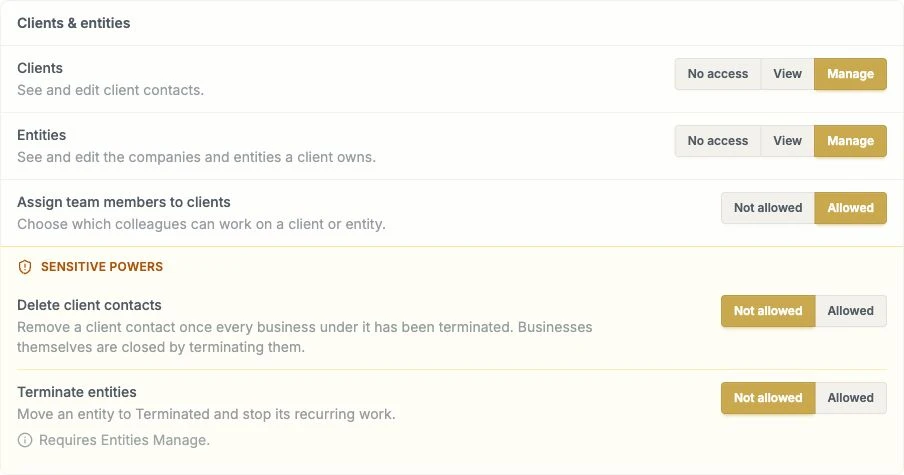
Ordinary client access and Sensitive powers are separate choices.
4. Add reference access and shared views
Continue through the remaining groups in order. Set only the following permissions; leave all other choices at No access or Not allowed.
| Editor group | Permission | Choose |
|---|---|---|
| Tasks & deadlines | Firm deadline templates | View |
| Documents, forms & templates | Document filing rules | View |
| Firm setup, integrations & storage | Services | View |
| Team & roles | Team list | View |
| Reports & analytics | Shared saved views | Allowed |
The senior can read the firm’s Job Templates, filing rules, Services, and team list. They can also create and edit shared Jobs views. These are firm-wide permissions; Which clients does not limit them to a particular portfolio. Shared views still respect each colleague’s client access.
If Document Filing is unavailable for your firm, skip that choice.
Keep Fees and financial data and Billing at No access for this example. The senior will not see fee amounts, send proposals, or issue invoices. If those duties belong to the senior in your firm, use the permission reference to choose the additional access deliberately.
5. Review and create the role
- Check Which clients still shows Only clients they are assigned to.
- At the bottom, check This role will grant against your selections. This example has eight permissions enabled.
- Resolve any warning about a permission that would do nothing. Follow its link or return to the relevant section to correct the combination.
- Select Create role when the choices are correct.
- Check that the role’s summary shows Senior accountant, the intended client scope, and the selected access levels.
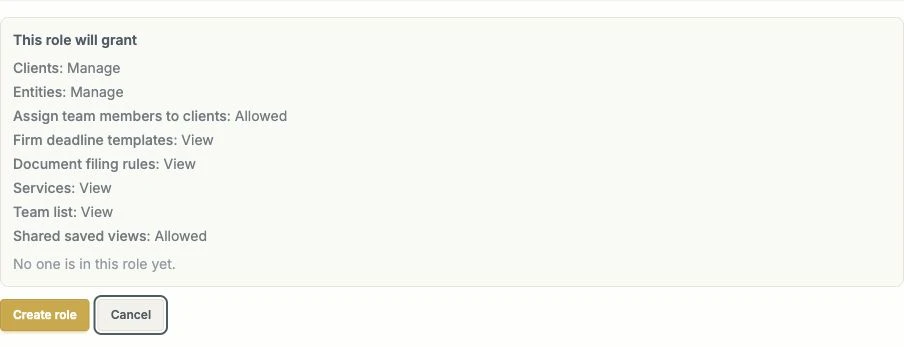
Review the summary before Create role. No colleague receives this role just because you create it.
6. Assign the role and clients
- Open Settings → Team and assign the role to the intended colleague. Changing a colleague’s role changes their access.
- Check their assignments on the relevant Contacts and Entities. A firm role does not automatically assign clients.
- Check that they can open an assigned client, edit its details, and use the shared work views they need.
- Confirm they cannot open unrelated client records or Billing under this example’s permissions.
If something is missing, check both the client scope and the individual permission. Editing this role later affects every colleague who uses it; review the affected people before saving changes.