Work with recurring Jobs
Understand where recurring work comes from and handle it without creating duplicates.
Select a screenshot to open it full size in a new tab.
On this page
Current app labels: open Tasks to work on Jobs. Open Settings → Firm Deadlines to manage Job Templates.
Where the work comes from
A Job Template sets the schedule and the clients it applies to. Ziffa creates an individual Job for each eligible Entity and due date.
For example, a monthly bookkeeping template produces a separate Job for Seabreeze Trading Ltd each month. You do not need to create that recurring Job by hand.
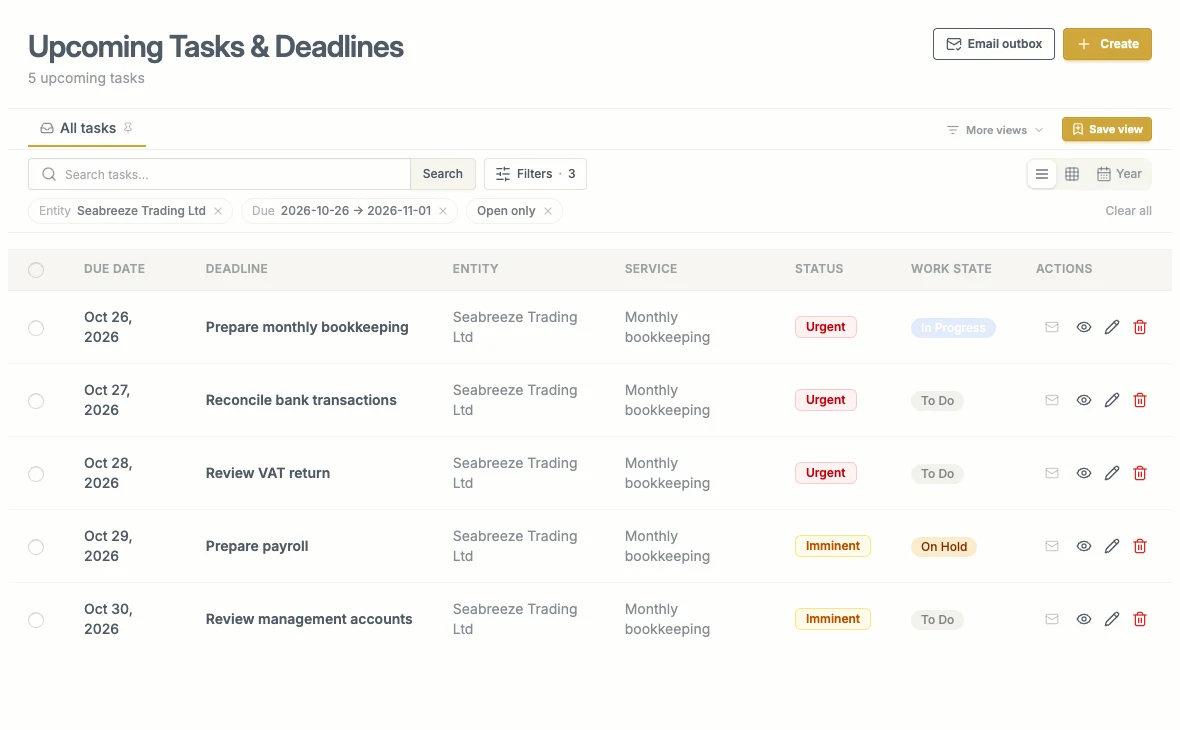
Each row is a separate piece of work. Use the due date, assignee, and work state to decide what needs attention.
Generation depends on the Entity’s assigned Service, its onboarding status, the template’s client types and selected clients, and any dates required by its schedule. Read Jobs and Job Templates.
Work through a Job
- Open Tasks and choose the view you need.
- Use the due-date and assignee filters to find the work needing attention.
- Select a Job to open its details.
- Check the Entity, Service, due date, assignee, budget, and document requirements.
- Request missing documents and add comments or supporting attachments where needed.
- Keep the work state up to date: for example, To Do, In Progress, or On Hold.
- When the work is finished, set its work state to Completed. If a submission is also required, record that separately.
Work state describes the team’s progress. It is not the same as a statutory submission record or an issued invoice.
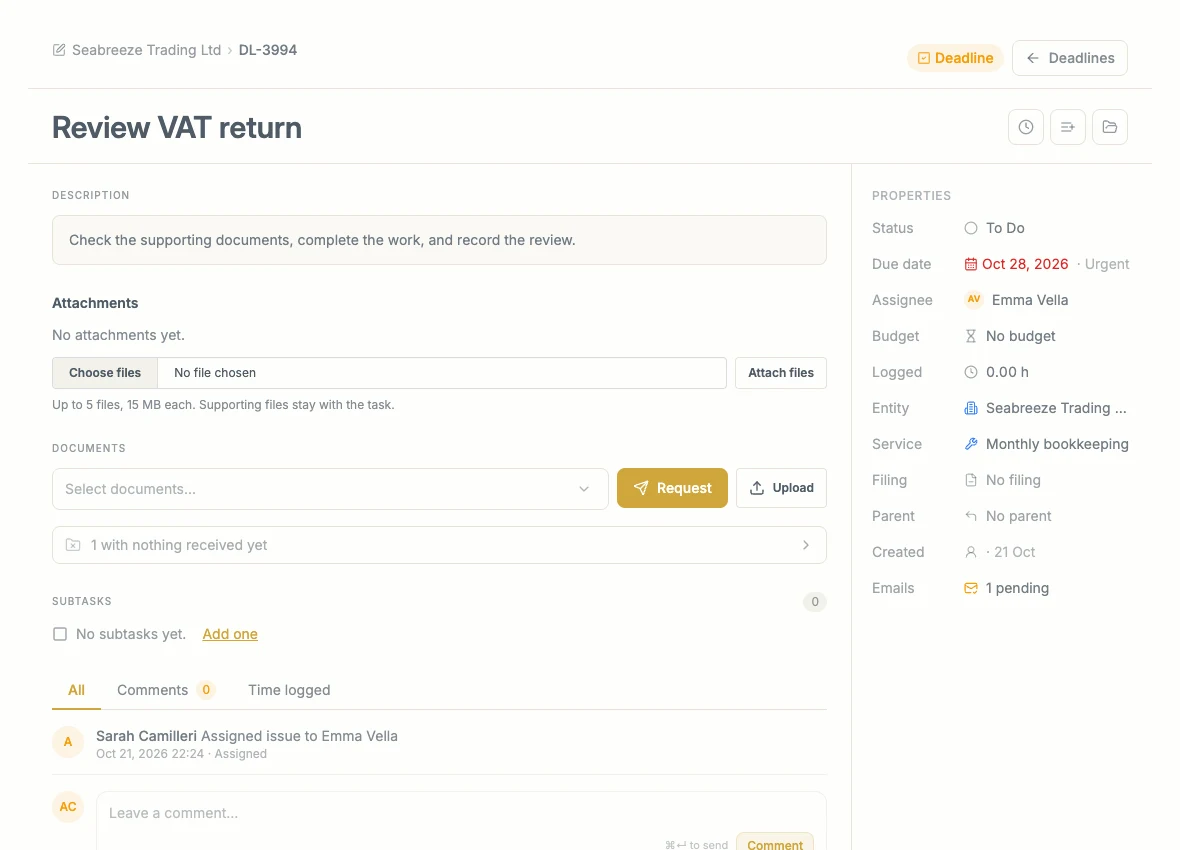
Opening a Job brings its work and properties together. In this example Emma is assigned, but the budget has not yet been set.
Make upcoming work useful
Save views for the work you need to see regularly: your own Jobs, a Service, or next week’s workload. You can set a saved view as your default; it also affects the upcoming-work card on your dashboard.
Use Filters and saved views and Plan next week’s work.
Change one Job or change the recurring rule?
- Change an individual Job when only that occurrence needs a different assignee, budget, or due date.
- Change the Job Template when the schedule or client scope is wrong for future work. Review any affected Jobs before confirming a schedule change.
- Create a one-time Job for work outside the normal schedule. Avoid manually copying a recurring Job that Ziffa is already generating.
The generation window is controlled in Automations. Re-running generation does not create a second copy of the same scheduled occurrence.
For the individual Job controls, follow Work through a Job or read Inside a Job.