Set up Job Templates
Define recurring or one-time work and check the dates before creating Jobs.
Select a screenshot to open it full size in a new tab.
On this page
Current app labels: open Settings → Firm Deadlines. The add action is Custom Deadline and the final create action is Create Deadline.
Create a template
- Open Firm Deadlines and select Custom Deadline.
- Choose its Services, if applicable, and enter the Deadline name.
- Choose the applicable Client Types.
- Choose a Schedule and complete its details.
- Check the example due dates in the schedule preview.
- Configure the client alerts and Applies to scope.
- Select Create Deadline.
Saving a template can create Jobs for eligible clients immediately. Check the scope and dates before saving.
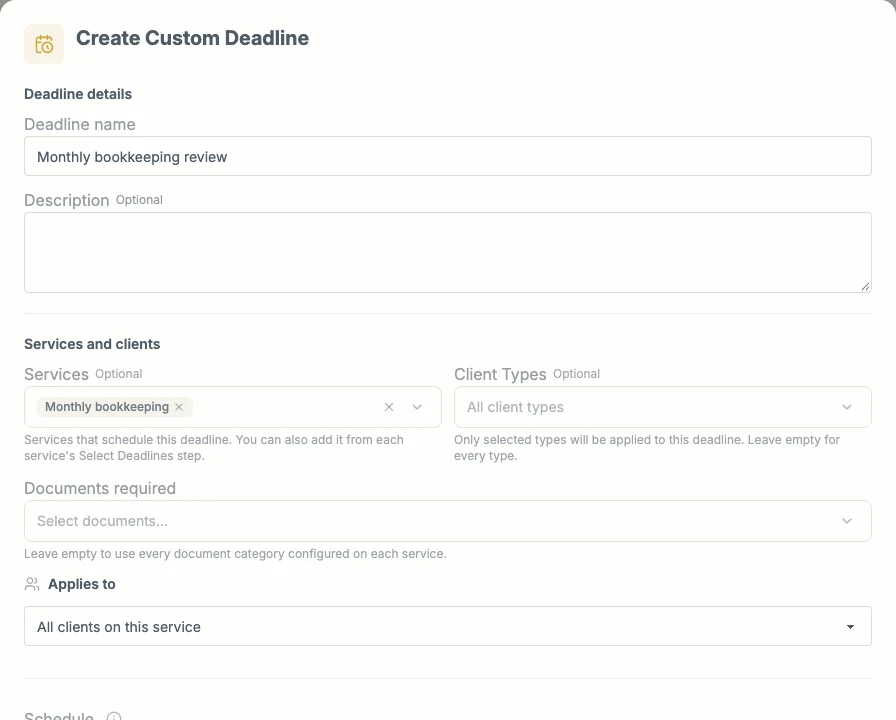
The current Job Template form is called Create Custom Deadline. Link the right Service and check which clients it applies to.
Template fields
| Field | What it controls |
|---|---|
| Services | The Services linked to this template. You can link more than one Service. |
| Deadline name | The name of the generated Job. |
| Description | Optional instructions that explain the work. |
| Documents required | The document categories needed for this Job. These are separate from attachments added while working. |
| Client Types | Which client types the template covers. The client must also have the Service. |
| Budgeted time | Planned hours and minutes for the whole Job, including subtasks. New Jobs inherit it; existing Jobs keep their budget. |
| Government body | An optional authority associated with the work. It does not send a filing to that authority. |
| Requires external submission | Whether completion must record a submission outside Ziffa. This does not submit a return or filing for you. |
| Client alerts | Whether this template sends client reminders. Configure the levels and timings. |
| Applies to | All eligible clients on the Service, only selected clients, or all except selected clients. |
| Invoice-draft lead time | An optional override for Job-based billing, explained below. |
Choose a schedule
| If the work is due… | Choose… |
|---|---|
| Once, or repeating from a date you enter | Start date + frequency. Use One Time for a single occurrence. |
| On a particular day each month | Fixed day each month. |
| On a particular weekday | Fixed day each week. |
| On a particular annual date | Fixed date each year. |
| Relative to an Entity’s period end, financial year end, incorporation date, or another date | Before or after a Client date. |
Where offered, Every controls how many intervals to skip. The preview is the best place to check that the chosen frequency and offsets match the intended rule.
If a day does not exist in a month, such as 31 April, Ziffa uses the last day of that month. Check month-end examples carefully when setting date offsets.
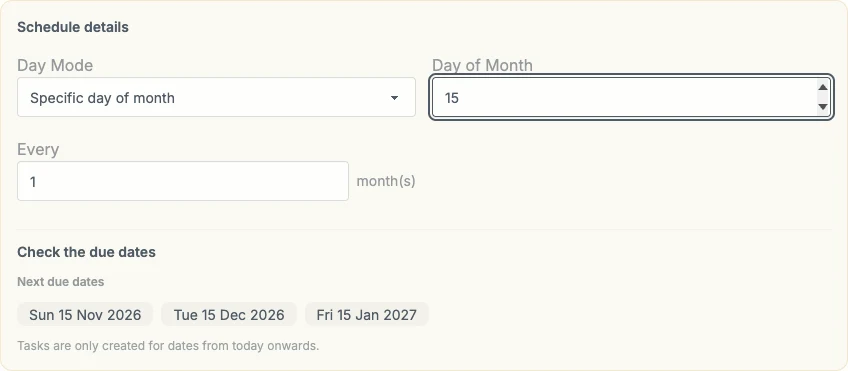
This example is due on the 15th of each month. Check the example dates before creating the template.
Schedule fields
The fields shown depend on Schedule. Use the due-date preview to check their combined result.
| Field or option | Meaning |
|---|---|
| Date | The entered starting date for Start date + frequency. |
| Frequency | One-time or repeating work. It is independent of the Service’s billing frequency. |
| Every | The interval, such as every two months. |
| Starting | Where an every-N cycle begins, when the rule needs an anchor. |
| Weekday / On | The weekday for a weekly rule or weekly repeat. |
| Day Mode / Day of Month | A specified day or the last day for a monthly rule. |
| Month / Day | The annual date for a yearly rule. |
| Client-date source | The Entity date to count from: period end, calendar quarter end, financial year end, incorporation date, or an applicable Date custom field. Missing Entity values can prevent generation. |
| Months, Days, before / after | The offset from the source date. Months are applied first, then days. Zero uses the source date itself. |
| On a set day of the month | Moves the calculated date to that day within its month. Shorter months use their last day. |
| Not earlier than a fixed date | Prevents the due date falling before the chosen Day, Month, and Of year rule. It is a lower limit, rather than another repeating schedule. |
For example, two months after 31 March gives 31 May. Turning on a set day of 15 makes the due date 15 May. Check the preview when combining offsets and minimum dates.
Choose the client scope
Applies to can cover all clients on the Service, only selected clients, or all except selected clients. The Entity must also have the Service active at the required onboarding status and meet the template’s client-type and date requirements.
Read Entity dates and tax details if a date-based Job is missing.
Set the invoice-draft lead time
Invoice-draft lead time is how many days before this template’s due date a mapped fee line can enter an invoice draft. It applies only when the Service’s billing trigger is Deadline and a fee line uses this template as Bill when.
Leave it blank to use the firm’s Default deadline lead time from Billing setup. Enter a number of days to use that number for this template only. Enter 0 if the draft should become eligible on the due date itself. For example, a Job due on 30 November with a 30-day lead time can enter a draft from 31 October.
The lead time does not change the due date, and it does not issue the invoice. A Job does not have to be completed before the draft is created.
Edit with care
Open an existing template to change its rule. Review affected Jobs before confirming scope or schedule changes. Work already in progress and historical work can be treated differently from future work not yet started.
Use Generate to run generation again when needed. It does not create duplicate copies of an existing scheduled occurrence.
The amount of work generated ahead of time is controlled under Automations.