Inside a Job
Understand the controls, supporting files, document requirements, and activity on an individual Job.
Select a screenshot to open it full size in a new tab.
On this page
Current app label: Jobs appear under Tasks. Some controls still use the word task or deadline.
A Job is one piece of work for an Entity. Its properties describe who owns it, when it is due, and how far it has progressed. Follow Work through a Job for a practical example.
Attachments and Documents
| Area | Use it for | What happens to the file |
|---|---|---|
| Attachments | One-off working papers, instructions, or notes needed only for this Job. | The file stays attached to the Job. It is not classified, extracted, or filed into the provider’s document folders. |
| Documents | Client records required for the Service or Job, such as invoices or identity documents. | Files go through document processing and are filed in connected storage, or held for review. |
Attachments can be treated as disposable working files when they are no longer needed, according to your firm’s policy. They are not automatically thrown away when you finish the Job. Removing an attachment removes that stored attachment; it does not delete a separately filed source document.
An attachment does not satisfy a document requirement. Use Upload in Documents to submit a client record for processing, and Request to ask the client for missing records. Collect client documents explains the different routes.
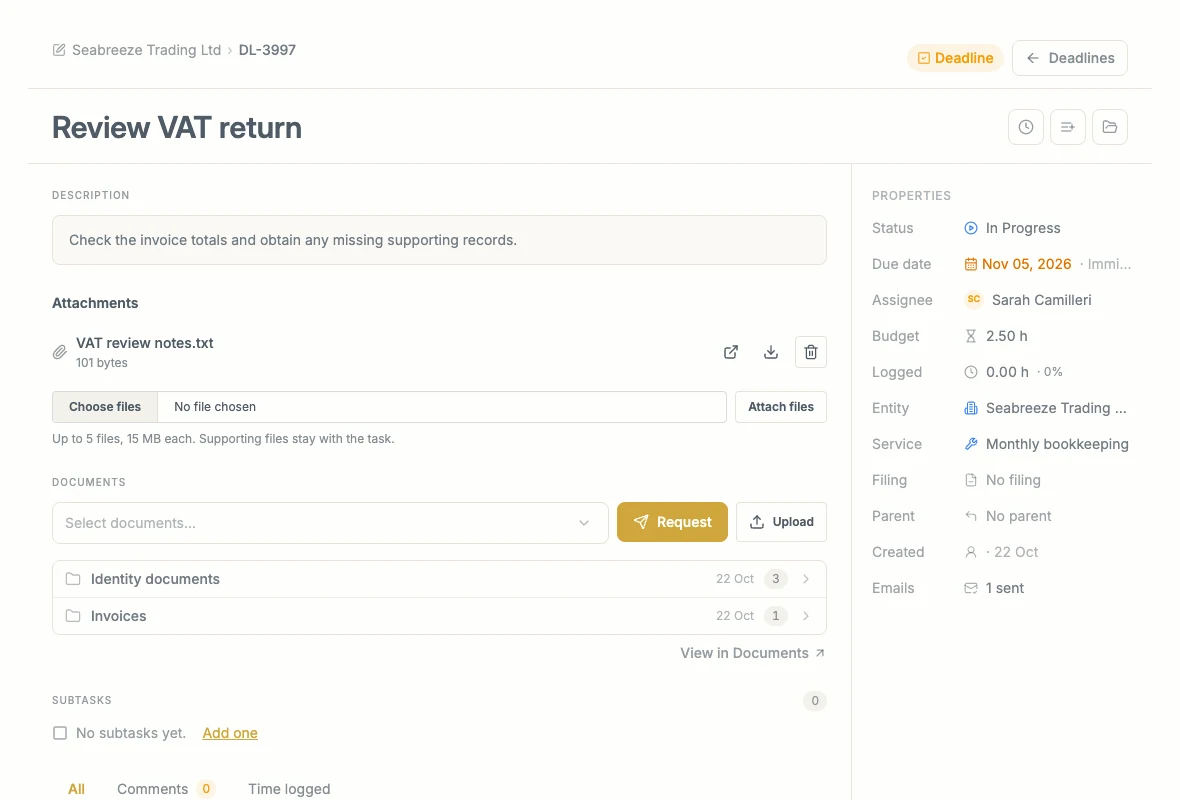
The two areas serve different purposes even though both can contain files.
Properties and work state
The properties show the due date, assignee, budget, logged time, Entity, Service, parent, and other information applicable to the Job. Select an editable value to change it. On a narrow screen, these controls appear as chips.
Work state describes progress: for example To Do, In Progress, On Hold, or Completed. Submission records and billing are separate. Completing work does not necessarily record a statutory submission or issue an invoice.
A change to this Job is different from changing the Job Template that generates future work.
Subtasks
A subtask is a smaller piece of the parent Job, with its own title, assignee, due date, and work state. Select Add one or Add subtask to open the composer. The chips set its properties; Create more keeps the composer ready for another entry.
The parent budget covers the whole Job and its subtasks. Next month’s recurring Job is a separate occurrence, not a subtask of this one.
Time logged
The clock control records time. Time logged lists the entries with their minutes, dates, and notes. You can correct or remove your own entries using the controls on the row. Check the total after saving.
Time entered from a Job is Actual client work for that Job. To record Miscellaneous, Leave, or Sick Leave, open Profile Settings → Time Management → Log Time instead. These categories are recorded without a Job. Actual client work on that page requires you to choose a Job.
Budgets are hours, not fees. Time logged on the work contributes to the budget calculations. A recorded time entry does not change the client’s agreed fee by itself.
Email history
Select Emails to open the Job’s email history. Inspect the message and recipients before deciding whether another message is necessary. The outbox can also be opened from the Tasks page’s Email outbox control.
| Status | Meaning |
|---|---|
| Pending | Queued; not yet attempted. |
| Sending | A send is in progress. |
| Sent | The mail server accepted it. Inbox delivery and reading are not confirmed. |
| Failed | Sending failed after the available attempts. Check the explanation and retry control. |
| Skipped | It was deliberately not sent because the send conditions were not met. |
Recording Document Requested means the request was made. Check the separate email outcome to know whether the message was sent. A failed-email warning links to the outbox where applicable.
Recorded activity
All combines the recorded events. Comments and Time logged give more focused views. Activity is newest first; the first five entries are shown initially, with older entries behind Show more where available.
| Entry | What it records |
|---|---|
| Assigned | An assignment or reassignment, including the responsible colleague. |
| Field Changed | Changes to tracked Job properties, with previous and new values where recorded. |
| Work State Changed | A change in progress state. Some property edits record this within Field Changed. |
| Time Logged | Time added, edited, or removed. The original entry remains in the history after a correction. |
| Commented | A colleague’s comment. |
| Subtask Created | A subtask created under the parent. |
| Document Requested | The request submitted from the Job. It does not confirm email delivery. |
| Email Sent | A successful send outcome and recipients. |
| Email Failed | A final failed-send outcome. |
| Email Skipped | A recorded skip, such as a reminder suppressed because work was closed. |
Tracked properties include name, type, description, budget, due date, submission requirement, submission date, work state, assignee, parent, Entity, and Service. Schedule changes can also record adjustments to affected Jobs.
The activity list is a record of the events above, not a promise that every click, file operation, or possible change is logged. For example, do not expect an attachment upload or removal to produce a dedicated activity entry.